
On iOS we recommend Streisand — it supports the VLESS protocol and can import your clickone subscription by scanning a QR or pasting a link. Here's the full flow.
- 1
Install Streisand
Open the App Store, search 'Streisand,' and install it (free). If it doesn't appear in your region, switch to a US / overseas Apple ID first. On first launch, allow it to add a VPN configuration.
- 2
Get the subscription link / QR
Sign in to the clickone console, open the 'Nodes' page, and tap 'Get subscription QR' — the page shows a QR code and a subscription link.
- 3
Import the subscription
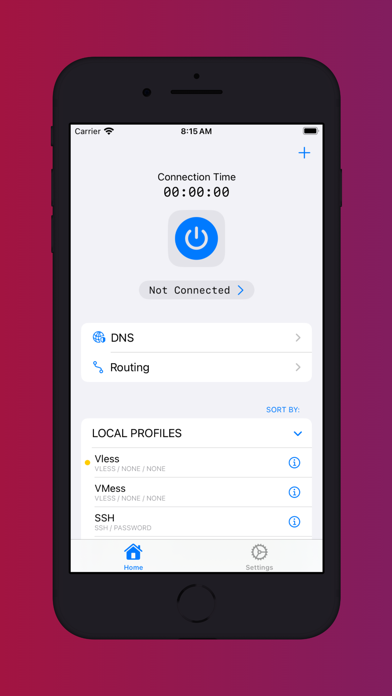
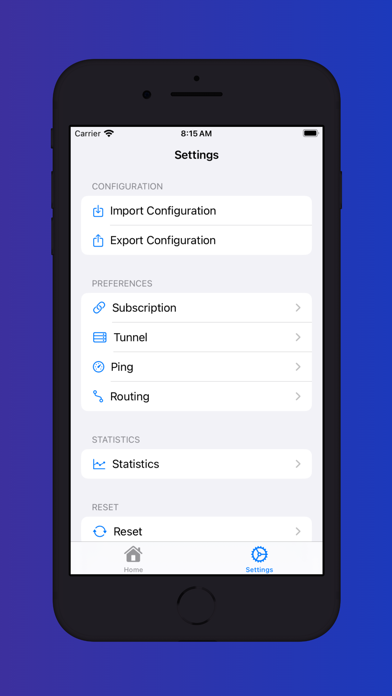
On the Streisand home screen tap '+' → 'Scan QR code,' or choose 'Import from clipboard' to paste the link. You can also manage subscriptions under 'Settings → Import Configuration / Subscription.'
- 4
Pick a node and connect
Back on the home screen, select a nearby node from the config list and tap the connection toggle at the top. Allow the system VPN prompt the first time.
iOS opens the App Store; if it isn't available in your region, switch to a US / overseas Apple ID before installing.
About your Apple ID
In some regions Streisand won't show up in the App Store — switch to a US / overseas Apple ID first, then install.